
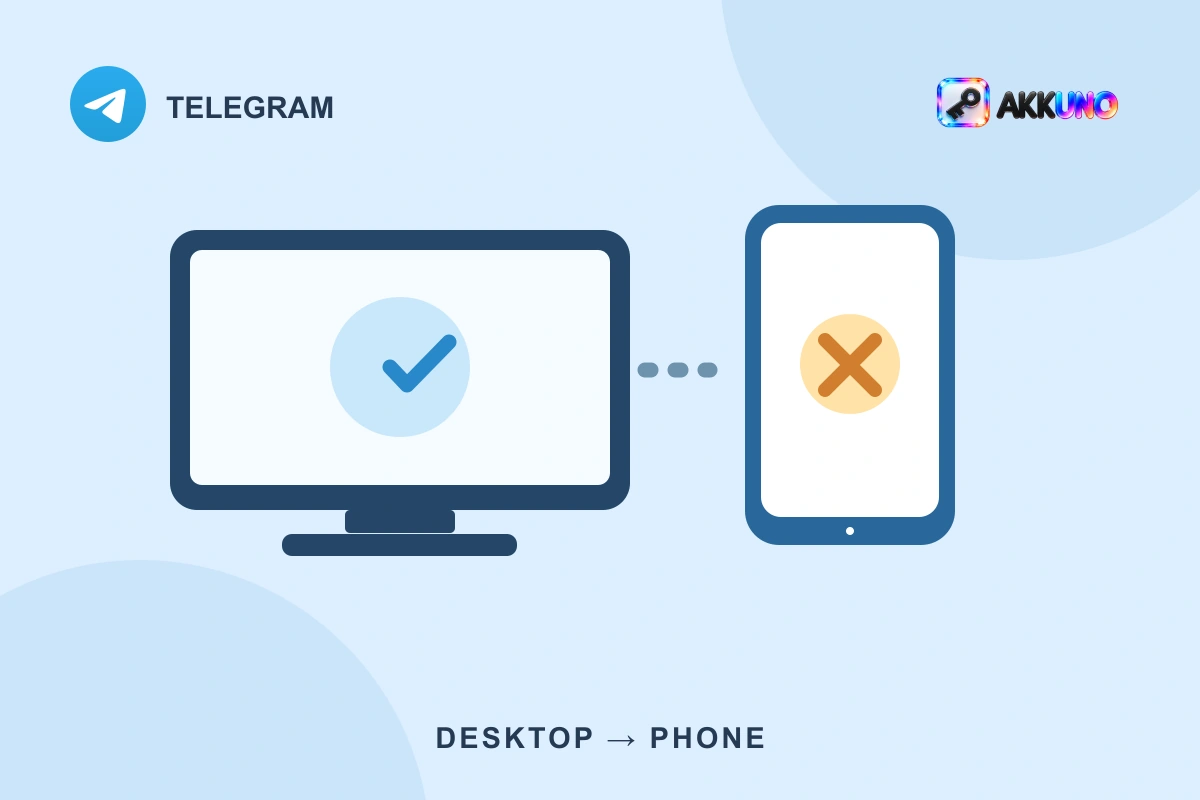
Telegram opens your chats on your computer, but your phone asks for a code, a two-step verification password or a waiting period. This does not necessarily mean the account is lost. An existing desktop session and a new phone sign-in are different states, with separate checks. Working desktop access alone does not guarantee that you can add your phone.
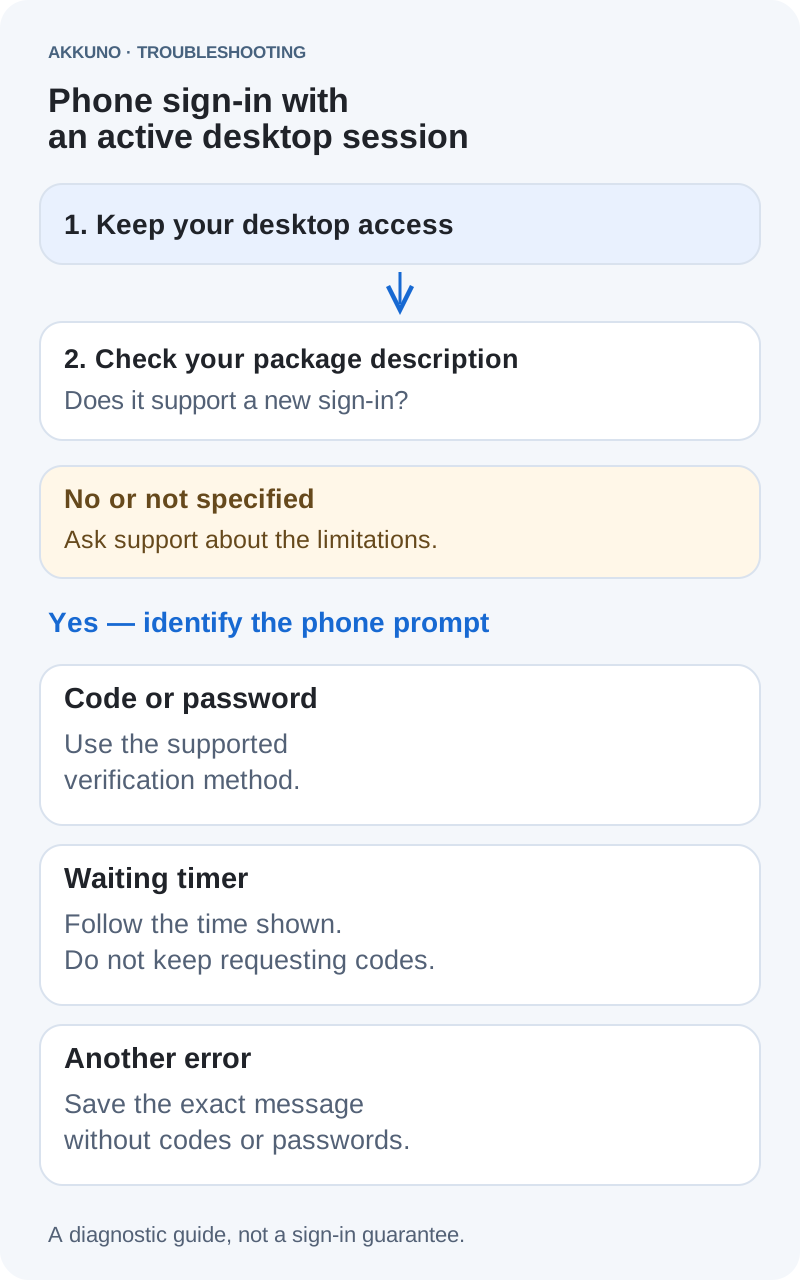
Start with the limitations of your account package, then identify the prompt on the phone. Keep the desktop session available while you investigate: do not log out or delete its account data.
Is sign-in failing, or is Telegram not connecting?
Look at what the phone actually shows. A screen asking for a number, code or password, or displaying a sign-in timer, belongs to the authorization process. If you can already see your chats but Telegram remains on “Connecting,” you may already be signed in. That calls for a separate check of the app and its connection.
Record whether you reached the chat list and the last message you saw. A missing password and a stalled connection need different next steps.
When managing several accounts, check that the computer has the intended profile open. Compare the number in its settings with the relevant order privately.
Check whether your package supports a new sign-in
TData describes data used by the desktop client. The name does not promise Android or iPhone access, another verification code, or an included two-step verification password. Different listings can provide different kinds of access.
Read the description of the option you purchased and its delivery instructions. Three details matter here: whether a new sign-in is supported, how it is confirmed, and whether the additional password is supplied when required.
| What the package says | What to check | What it does not guarantee |
|---|---|---|
| Desktop access through TData only | Any restriction on transferring or creating a session | Phone access |
| A 2FA password is included | Where the verification details are supplied | A code through any method you choose |
| Code-based sign-in is supported | The instructions for this particular option | Delivery of the code to your computer |
| A new sign-in is not described | Ask support before trying different methods | Compatibility based on a file name or country |
For example, AKKUNO’s “Telegram account Russia — TData” option provides desktop-only access. Its package does not include a 2FA password and does not support transferring the session or creating a new one. A general phone setup guide cannot change those conditions.
SESSION and JSON files do not establish mobile compatibility either. The Telegram format guide explains the different packages. If you need phone access, check the supported sign-in method in each listing in the Telegram catalog. Country and format labels alone are not enough.
Keep the working desktop session
Do not select “Log out” or end your only working session simply to try starting again. Avoid deleting the app’s account data or replacing an existing profile folder with files from another order. You could lose the access you currently have while the phone problem remains unresolved.
Closing a program window is different from logging out. The concern here is ending a session or removing its access data.
Keep the original delivery privately and separately. A saved copy is not a guarantee that a revoked session can be restored. Avoid uploading the archive to an unfamiliar service promising to move TData to a phone: session files may grant account access. See the Telegram security guide for handling those files and reviewing devices.
Follow the prompt on your phone
Continue these checks only if your package supports a new sign-in. If its description explicitly excludes that, ask about the limitation instead of working through every possible authorization method.
The phone asks for a verification code
Check the phone number and country code first. Then read the delivery instructions above the entry field. Telegram chooses the confirmation method, so look for the code where the app says it was sent.
If delivery is through Telegram, check the verified Telegram service chat in an accessible session of the correct account. If another method is specified, an open desktop session does not guarantee that the message will appear there. Follow the package’s supported initial sign-in instructions.
Do not forward the code to another chat, including your own, or capture the code message for support. Telegram provides for invalidating codes when they are handled this way. Enter the confirmation directly in the app where you started signing in. If the code is reported as invalid or expired, use the specific error and the actions available on that screen.
A two-step verification password is required
This is the account’s additional password, sometimes called a cloud password. It is separate from the one-time code and from a local passcode that locks the desktop app. Requesting another verification code will not replace a missing password.
Check whether your package includes 2FA details and where they are provided. Do not guess from the file name, phone number or the password to your personal account. If promised details are missing, document that mismatch and contact support.
Do not start an account reset merely to get past this screen without understanding the consequences. Password recovery and resetting an account are different operations. Read Telegram’s full warning before acting.
A timer or “too many attempts” message appears
Stop requesting more codes and follow the waiting instruction shown by the app. FLOOD_WAIT describes a limit on attempts to perform an action; it is not a general label for every account ban.
There is no single 24- or 48-hour answer for every case. The waiting period depends on Telegram’s specific response, and reaching its end does not guarantee that other checks, such as 2FA, will be satisfied.
Record the message and when it appeared. Do not assume that changing countries, installing another client or buying Premium will resolve it. The account restrictions guide explains why different restriction messages need to be treated separately.
The app asks for something else
A request to update the app, an invalid code and a banned-number message are distinct situations. If Telegram explicitly requires an update, use a current official version. If it reports a ban, follow the appeal or support options it offers. Copying the desktop files again does not diagnose that message.
Official authorization also includes email verification and, in some circumstances, a payment related to the cost of delivering a code in a country or through a provider. Such a screen alone does not establish that the supplied package is faulty. Check its exact wording and the app displaying it. If you cannot access the requested email address or do not understand the requirement, clarify your order’s conditions first.
A passkey option is available
A passkey is another Telegram sign-in method. It is relevant when an appropriate key is available to you and the client supports it. Possessing a TData folder does not mean you also have a usable passkey.
A passkey does not remove the two-step password requirement. If 2FA is enabled, Telegram still requires that password. Do not assume that every restricted package will let you create a key or that doing so would solve an unknown-password problem. Availability depends on the account and client.
Can you copy TData or use a QR code instead?
Simply copying a desktop TData folder to a phone is not the standard process for a new mobile sign-in. The important questions remain whether the package supports separate authorization and whether you have the required means of confirmation. A folder does not replace those conditions.
With QR instructions, check which device is being connected. Many guides explain how to authorize a computer using a phone that is already signed in. That does not solve the reverse problem. Avoid scanning an unexplained QR code or handing session files to a third-party “helper.” Identify the supported connection method for your device first.
If the required option is absent, preserve your session and ask about compatibility instead of reinstalling repeatedly.
When to contact AKKUNO support
Contact AKKUNO support when phone sign-in was included in the description but promised information is missing, delivery instructions do not match the supplied package, or the supported method remains unclear.
Prepare the following:
- The order number and purchased option.
- The app name, version and phone operating system.
- The exact error message and when it appeared.
- A short sequence of actions leading up to it.
- Whether the correct account remains accessible on the computer.
You can attach an error screenshot with personal information hidden. Keep login codes, passwords, delivery links and session files out of that image. Check the guarantee terms for reporting conditions and required evidence. This guide does not establish a separate reporting period or promise an automatic replacement.
Frequently asked questions
Everything opens on the computer. Does that prove the password is correct?
A working session confirms that access remains available on that device. It does not establish that you know the password required for a new sign-in.
Can I log out on the computer while the phone waits for a code?
Keep the desktop session until you have established the sign-in method and confirmed phone access. Starting a sign-in attempt is not the same as completing it.
Sources and verification
- Telegram FAQ: login codes, signing in and two-step verification. Checked November 6, 2026.
- Telegram API: User Authorization, auth.sendCode and auth.signIn. Checked November 6, 2026.
- Telegram API: Passkey login and Two-factor authentication. Checked November 6, 2026.
- Telegram API: Error handling and Login via QR code. Checked November 6, 2026.
- Telegram: Passkeys, Gift Purchase Offers and More, December 12, 2025. Checked November 6, 2026.
- AKKUNO: package descriptions and existing sign-in, format and security guides. Reviewed November 6, 2026.


