

A Telegram passkey is an additional way to sign in to an existing account using a device PIN, fingerprint or face recognition. Create it in advance while you already have access to the intended profile. For multiple accounts, set up and check keys separately: know which profile each key belongs to and where it is stored.
If the account has a two-step verification cloud password, Telegram still requires that password when signing in with a passkey. A passkey alone does not guarantee recovery after losing a device or password manager.
How a passkey differs from a code and password
A passkey uses a cryptographic key pair: the public part is associated with the Telegram account, while the private part stays on the device or in a supported passkey manager. When you sign in, the system confirms the action without sending Telegram the private key. A fingerprint, face scan or PIN locally authorizes use of the key.
| Item | Purpose |
|---|---|
| Passkey | Confirms sign-in to its associated account in place of the relevant code when available |
| Telegram cloud password | Extra two-step verification password, if configured |
| Device PIN or biometrics | Authorizes use of the key or unlocks the device |
| App lock code | Restricts opening the app on a device; it is not a passkey |
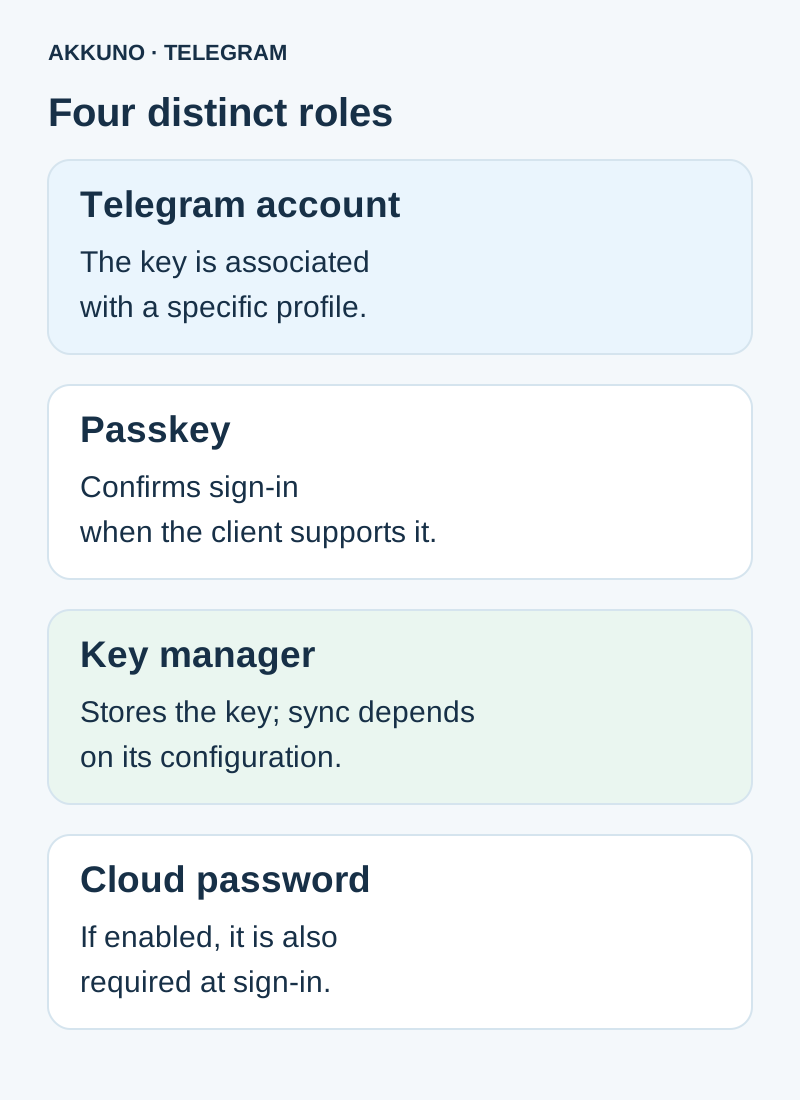
These items are not interchangeable. Our separate guide to login codes and passwords explains the differences in more detail.
Create a key for the intended account
- Confirm that you are already signed in to the intended account and authorized to change its settings. Keep the working session until you have checked your access.
- In a supported official app, open Settings → Privacy and Security → Passkeys. Labels and availability can vary by client and operating-system version.
- Choose to create a key and read the system prompt carefully: check which profile and manager will be used. Confirm using the method provided by your device.
- Return to the passkey list in Telegram and confirm that the new key appears. Record the profile’s purpose and storage location for yourself without copying secrets.
- If sign-in on another device is actually needed, check that the chosen manager is available there and follow the offered flow. Do not sign out of your only working session for an experiment.
If the option is missing or the system does not offer a suitable manager, check support and settings for your specific app and operating-system versions. Do not use an unknown client just for this feature. Creating a key does not replace checking your other access conditions.
Keeping multiple profiles straight
Before creating each key, switch to the intended Telegram account and check its profile details. A manager may show several Telegram entries; choose the one corresponding to the profile you need. Labels and ways to distinguish entries depend on the manager.
A personal record can contain non-secret details:
| Profile | Key storage | What was checked |
|---|---|---|
| Personal | Personal manager on the main device | Key appears in Telegram’s list |
| Work | Manager approved by the organization | Access owner and check date recorded |
Do not put PINs, cloud passwords, recovery codes, session files or key material in that table. Follow your organization’s rules for work accounts: syncing to a personal cloud or using a shared manager may be prohibited.
Review and revoke a key
Telegram’s Passkeys section lists associated keys and, according to its FAQ, details such as creation and last-use dates. Compare entries with your records. An unfamiliar key is a reason to review account security and active sessions; it does not by itself identify who used it.
Before removing a needed key, make sure you have a working session and another verified way to access the account. Then select the specific entry in account settings and read the app’s warning. Deleting an entry in a password manager and revoking a key in Telegram are actions in different systems; check both places using the relevant service’s instructions. Do not delete every key without understanding the consequences.
Changing or losing a device
If the old device still works, first check where the key is stored, whether sync is enabled in the selected manager and whether you can open that manager on the new device. Conditions vary: sync may be off, restricted by company policy or require recovery of the manager account. Keep the old session until access on the new device is checked.
If the device is lost, try to recover your manager using its official instructions and check for other active Telegram sessions. Do not assume the cloud password alone replaces a lost key or code: it remains an extra protection. The app will show available sign-in and recovery options. Telegram also recommends maintaining control of the account’s current phone number; having a passkey does not prove you control that number.
If the account was obtained as a product
The ability to add a key, manage the number or use a particular client depends on the individual package and its terms. Do not treat a working session or a file as a guarantee of those capabilities. Review the description in the Telegram catalog and contact AKKUNO support if anything is unclear, without sharing keys, passwords or codes. See the security guide for general access protection.
Frequently asked questions
Is the cloud password needed with a passkey? Yes, if two-step verification is enabled: Telegram says the configured password is still required with a passkey.
Does one key cover all accounts? A key is associated with a particular account. Check and set up access separately for another profile.
Can I restore the key on a new phone? Sometimes, through a supported manager with sync or recovery configured. This depends on its terms and your access to it.
Should I delete the old key immediately? First make sure you have a working session and an alternative sign-in method, then decide whether to revoke it.
Sources and verification
- Telegram API. Passkeys and the two-step verification password. Checked 7 November 2026.
- Telegram FAQ. Creating and managing passkeys. Checked 7 November 2026.
- Apple Support. Passkey security and recovery. Checked 7 November 2026.
- Google Chrome Help. Passkey managers and sync. Checked 7 November 2026.


