
If you have personal and work Telegram accounts, notifications may arrive from both even when only one is open. When alerts for the second profile are missing, or work chats interrupt your evening, check the operating system, app, relevant account and individual chat.
Labels and available switches depend on the client and version. Change one setting at a time and test with an ordinary message so you know which change affected the result.
First identify where the problem occurs
| Symptom | Check first |
|---|---|
| Only one chat is silent | Its sound, temporary mute and chat exceptions |
| Every chat in one profile is silent | Active account, categories and the all-accounts setting |
| Neither profile gives alerts | System permission for Telegram, Do Not Disturb and app settings |
| A banner appears without sound | Chat silent mode, Telegram sounds and the system volume |
| Alerts arrive late | Scheduled delivery, Focus and background restrictions |
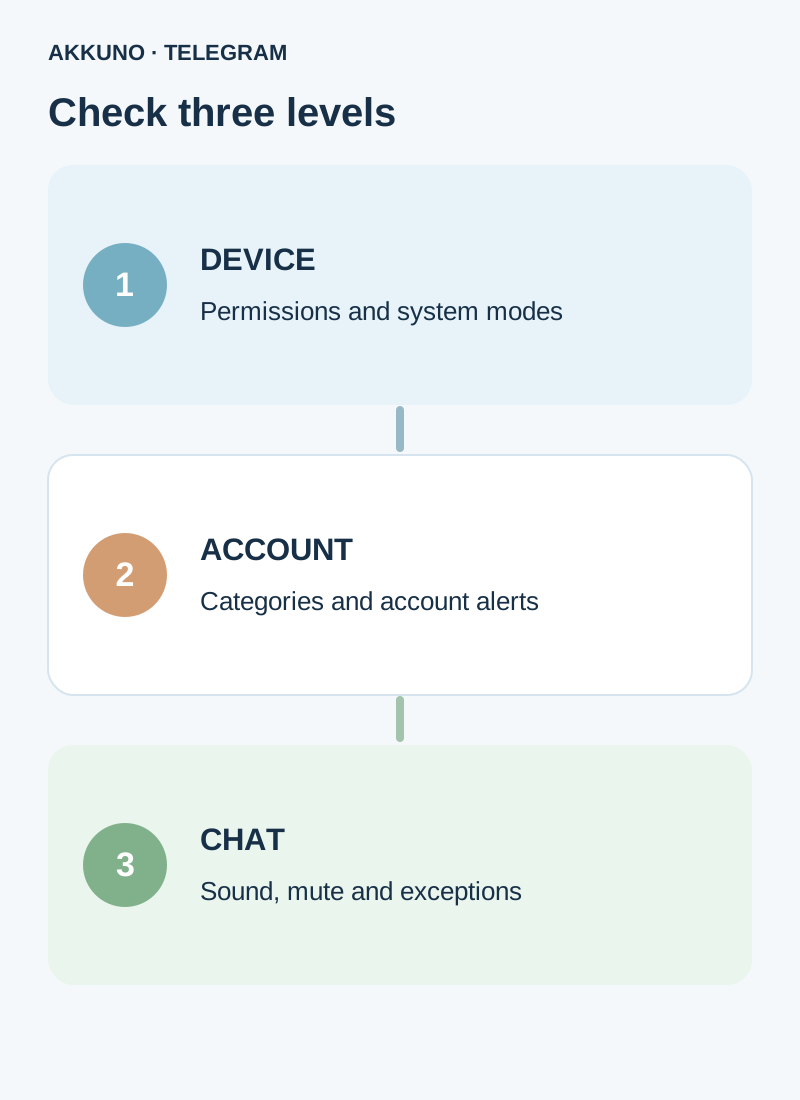
These are starting points, not guaranteed diagnoses. For example, missing sound can come from the phone’s own settings. Note the original position of a switch before changing it so you can restore it if needed.
Receive notifications from the second account
Open Telegram and confirm both profiles are added and accessible. Switch to the profile whose alerts are missing, then open Settings → Notifications and Sounds. Check the categories for private chats, groups and channels, as well as exceptions for the conversation you need.
Some clients have an All Accounts setting controlling alerts from other added profiles. Telegram’s official materials show this option for iOS and macOS, but its location and availability can change. If it is present, check the switch and its explanation. Do not treat it as a universal permanent mute for one work account: when it is off, the result may depend on which profile is currently active.
Ask someone you know to send an ordinary test message to an unmuted chat on the second profile, or use another account you own. Repeat the test while the first profile is active. Do not use login codes or private information as test content.
Temporarily silence a work chat
For one conversation, open its information page and find Notifications or Mute. Telegram describes both disabling sound and muting notifications for a chosen period. They are different: silent mode may still show an alert without sound, while muting should prevent alerts for the selected time. Labels and durations depend on the version.
To reduce alerts from a whole work profile, switch to it and review notification categories and exceptions. Before disabling a category, check whether it contains important chats. Changing one conversation does not automatically mute the others; blocking Telegram notifications at the operating-system level can affect every account in the app.
For work hours, you can manually enable the alerts you need in the morning and silence them in the evening. System Focus modes sometimes support schedules, but their capabilities differ; check which apps and exceptions they affect. Do not assume every Telegram client can automatically schedule notifications for one profile.
Check the phone or computer
iPhone. Open Telegram’s notification settings in iOS and check permission, banners, sounds and previews. Focus or scheduled delivery may also change when alerts appear. If you hide content on the lock screen, check the result with an ordinary test message.
Android. Find Telegram in the system notification settings and check permission and available categories. Names differ across Android versions and device manufacturers. Also review Do Not Disturb and background or battery restrictions if alerts are delayed. Avoid changing everything at once.
Computer. Check the system notification permission for the installed client, Focus mode and Telegram’s own settings. Telegram Desktop and the separate Telegram for macOS are different apps; changing one does not necessarily change the other. Our computer guide covers the clients and switching profiles.
Avoid confusing the accounts
Give personal and work profiles distinct names and images if appropriate. Telegram may show which account an alert belongs to, but the format depends on version and privacy settings. Before replying, open the app and check the active profile and recipient.
Hiding lock-screen previews reduces the chance that bystanders see message content, but it does not replace locking the phone and app. Multiple profiles on one device can also raise contact-sync questions; see our guide to mixed contacts.
If alerts still do not arrive
Check your connection, update the official client and repeat the test in another unmuted chat. If the issue persists, contact Telegram support with the device model, OS and app version, profile, chat type and time of the test without exposing personal information. Do not sign out of your only working session for diagnosis if you are unsure you can sign back in.
For a separate work profile, review available characteristics in the Telegram catalog. For a particular delivery, contact AKKUNO support; there is no need to send codes, passwords or session files.
Frequently asked questions
Can alerts arrive for an inactive profile? Yes, if allowed by app, account, chat and system settings. Check All Accounts if present and run a test.
Does muting notifications delete messages? No. It changes alerts, not the conversation. Check chats manually while alerts are off.
Can I keep a banner without sound? Many versions offer silent mode; the outcome also depends on system and chat settings.
Can I schedule alerts off for only my work account? It depends on the client and system. Check whether the mode applies to one profile, all of Telegram or several apps.
Sources and verification
- Telegram. Notification sounds and temporary muting. Checked November 10, 2026.
- Telegram Translations. Notifications from all accounts. Checked November 10, 2026.
- Apple Support. iPhone notification settings. Checked November 10, 2026.
- Android Help. Control notifications. Checked November 10, 2026.


