
You can add several separate accounts to an official Telegram app on one computer and switch between them. Each profile keeps its own chats and settings. Opening the same account on a phone and a computer creates two sessions of one profile, not a second account.
First identify your client. Telegram Desktop is available for Windows, Linux and macOS. On a Mac there is also a separate Telegram for macOS app; settings may be arranged differently. Labels can change between versions, so follow the menu in your own client.
What to prepare before adding an account
You need authorized access to the account and to the sign-in method Telegram offers. If the profile is already open on a phone, QR sign-in may be available. Otherwise the app may offer a phone-number and code option. An account with two-step verification may also require its cloud password.
Separate accounts have different linked numbers. Signing in again with an existing number opens that same profile on another device. Work and personal chat folders inside a profile do not create new accounts either. For phones, see our guide to multiple accounts on a smartphone.
Add an account in Telegram Desktop
- Open official Telegram Desktop and sign in to your first profile if you have not already.
- Open the menu at the top left and expand the account list beside your name or profile arrow.
- Choose Add Account. If the option is missing, check the app version and whether the account list has an available slot.
- Sign in to the intended profile using the option shown: a QR code or a phone number if offered.
- After sign-in, open the account list and confirm the new profile’s name and photo.
For QR sign-in, first switch on your phone to the exact profile you want to add. In its settings, open Devices, choose to add a device or scan a QR code, then point the camera at the code on your own computer. Confirm the sign-in if Telegram asks. Menu labels may differ.
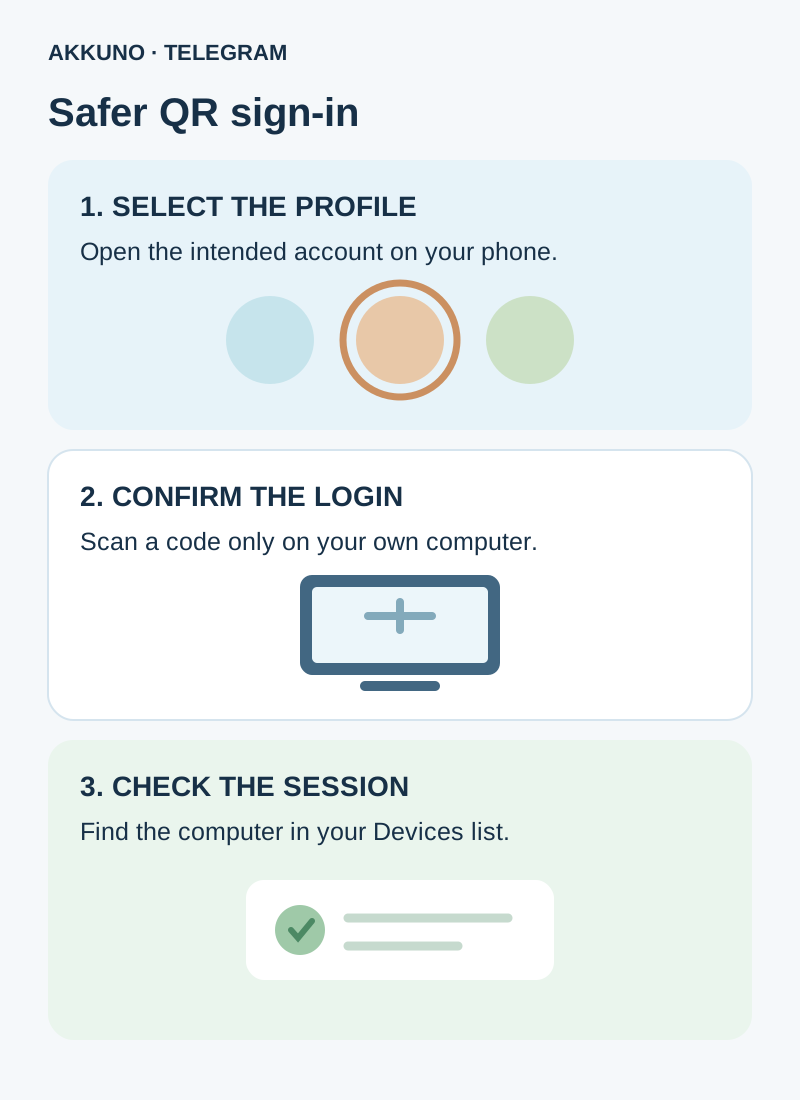
A login QR code can authorize a session: do not post or forward it, and do not scan a code sent by a stranger. If a cloud password is requested, enter it only in a verified official client. Login codes and passwords serve different purposes, as explained in our separate guide.
What is different on a Mac?
For Telegram Desktop on macOS, start with the menu and account list described above. If you installed the separate Telegram for macOS app, find the account list in Settings and choose to add a profile. Verification still relates to a specific account, but the screen depends on the client and version.
Telegram lists both Mac desktop clients separately. Do not assume that instructions for one apply unchanged to the other. If a control is missing, check the app name and its current help. We do not claim one numeric limit for every desktop version: check the available slots and any Premium terms in your own client.
Switch profiles without mixing up the sender
Once added, open the account list and select the profile you need. Normal switching does not require signing out and back in. Before responding, check the active account’s name and picture, especially when handling several shops or projects. Distinct names and avatars help, but do not replace checking sender and recipient before sending.
Review notifications in each profile and in the operating system. Do not assume that the app combines every account’s conversations in one shared inbox; the display depends on the interface. On a shared computer, use the app lock and protect the computer’s user account.
Check sessions and sign out safely
In each account, open Settings → Devices and review whether you recognize the computer and other sessions. Names, times and approximate locations may differ from what you expect, so consider the device and circumstances. If a connection is unfamiliar, use Telegram’s security settings. Our guide to the temporary restriction on ending sessions covers a possible limitation on a new device.
Signing out on the computer ends that session; it does not itself delete the account. Before signing out, check that you can authenticate again and avoid closing your only working session merely to experiment. Cloud messages belong to the account; secret chats are tied to a device and session and may be lost on logout.
If an account will not add
Check the client version, how many profiles are already connected and the message Telegram displays. If a code was sent to another active session, open that specific session. If it is unavailable, see our unavailable-device guide. Avoid repeatedly requesting codes and do not assume SMS will always be offered.
Premium belongs to an individual account rather than automatically to every profile on the computer; our Premium and multiple accounts guide explains the difference. For a work profile, compare options in the Telegram catalog, and ask AKKUNO support about a specific delivery. Do not share codes, passwords or session files.
Frequently asked questions
Can I use personal and work accounts on one PC? Yes, when the client has enough slots for both profiles. Each separate account uses its own number.
Do I need another computer for a second account? No. In a client supporting multiple profiles, add it and switch between them.
What if I scan the QR code from the wrong account? The profile that confirms the login is connected. Check the selected profile and its device list; end the relevant session if it was a mistake.
Does one Premium subscription cover every profile? No. The subscribed account receives its Premium benefits on its devices.
Sources and verification
- Telegram Applications. Official desktop apps. Checked November 10, 2026.
- Telegram FAQ. Multiple accounts, devices and logout. Checked November 10, 2026.
- Telegram Translations. QR sign-in and Telegram Desktop menu. Checked November 10, 2026.
- Telegram Premium FAQ. Subscriptions and multiple accounts. Checked November 10, 2026.


